EXISTING WORDS
Fix the sentence.
Correct a typo, date or short line in supported PDF text. Font and layout limits apply.
- Choose Edit text
- Click to type, or double-click a word
- Check the result, then Save a copy
 PagekindGet Pagekind
 FREE PDF EDITOR FOR WINDOWS
Correct supported text, fill a form, combine pages or make a scan searchable — one free Windows app, with nothing to upload.
Windows 10 & 11 · 64-bit
Unsigned engineering preview
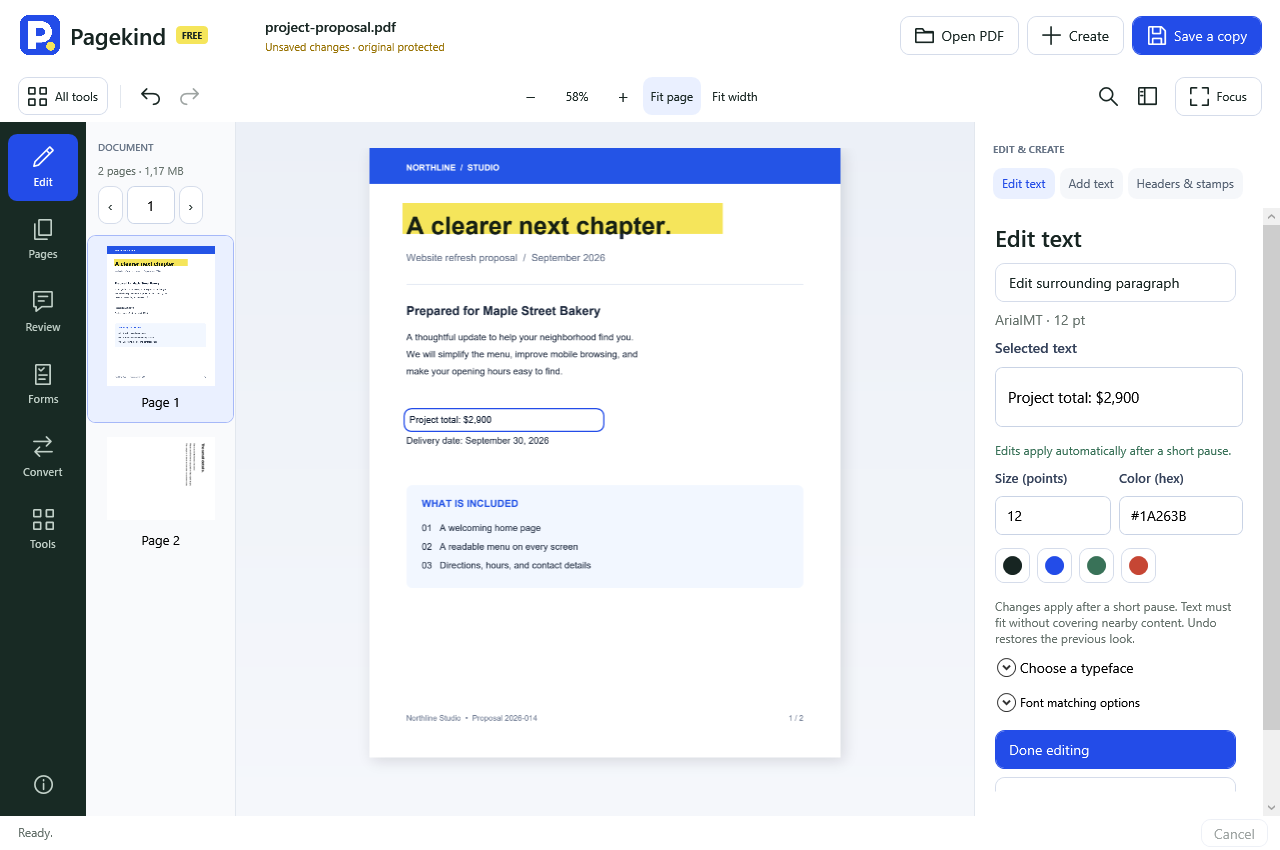
Change supported text, see it in your working PDF, and undo an applied edit whenever you need.
After installing, open it, change a word, then Save a copy.
Actual app views from an earlier preview · Sample documents
FROM TO-DO TO SENT
For the work between opening a PDF
and being happy to send it.
Correct supported text, add your own words, and save the version you meant to send.
Edit a PDFFill supported fields right on the page. Make a simple fillable form of your own, too.
Fill a formA proposal, an appendix, a missing page. Turn separate PDFs into one ordered packet.
Combine PDFsRecognize scanned pages, check important words and copy the passage you need. Requires an installed Windows OCR language.
Make a scan searchableContinuous pages and saved reading places.
Highlights, notes and conversations.
Replace and adjust supported images.
Check the layout before printing.
Document tabs and saved groups.
Reusable local PDF jobs.
Design fillable forms · Document tabs · Save open copies · Redacted image copies · Compression · Search, zoom & bookmarks · Rotate & extract pages · Passwords & permissions · Watermarks & stamps · Page numbers · Image & text export
Check what is supportedPRIVATE BY THE WAY IT WORKS
A client proposal. A personal letter. A form full of details. You shouldn’t have to upload it just to make a change.
Our plain-language privacy noteDocument processing happens locally. No upload service or app telemetry.
Work on your changes, then save a new PDF when you are ready.
No account to create, added watermark or paid upgrade to unlock.
Printing uses the destination you choose in Windows.
A CLEAR NEXT STEP
A correction, an extra detail or a scanned page.
Start with what you want to change.
Correct a typo, date or short line in supported PDF text. Font and layout limits apply.
Place a new text box for an extra detail or explanation. Existing words stay on the page.
Recognize words so you can search, select and copy them. The scan’s visible letters stay unchanged.
Just need a quote or a few lines?
Select and copy a passageHELP FOR THE NEXT STEP
From your first correction to your next project. Find practical steps for the task in front of you.
BEFORE YOU GET STARTED
A free app. A preview in progress.
Here is what to expect.
Yes. This preview has no subscription, paid tier, account, added watermark, or paid page and file-size limits. Large files still depend on the memory and speed of your PC.
Yes, on supported text runs. Click the line and type a replacement that fits. It applies to your working document as you type; undo or redo freely, then save a copy when you finish. If the original font cannot be matched, Pagekind explains the substitution before you choose it. Choose Edit surrounding paragraph to wrap a supported uniform block inside its existing frame. Mixed-style paragraphs, complex scripts, unreproducible glyph spacing and nested graphic text remain unsupported.
Yes. Choose OCR and an installed Windows recognition language to add searchable text to a supported scanned page. Review important words, then use Read & select to copy text or Find to search. The scan keeps its printed appearance. OCR can make mistakes, and a page that already contains text is skipped.
OCR recognizes words from the page image. Pagekind does not identify the exact font or promise recognition of every typeface, handwriting or complex layout. The original scan stays visible, so its printed font is preserved as an image. Word review corrects the searchable layer; it does not replace the visible words.
Yes. Choose Forms to fill supported text fields, checkboxes, radio buttons and choice lists. The page and side panel stay in sync, and values apply automatically with undo. Read-only fields stay protected. Choose Design a form to add text fields, checkboxes, dropdowns and single-choice questions, position and label them, then Try filling. Design controls support simple fields created with this designer. XFA, scripts and certificate signatures are not included.
Choose Pages, then Combine PDFs. Add your files, inspect their page previews, and arrange their order. With a PDF open, Combine PDFs updates its working copy and Pages shows the result; save a new copy when ready. With no PDF open, choose a new save name first. Your original input files stay unchanged.
The document engine uses local libraries and Windows OCR. It has no upload service or account. Automatic updates are disabled. Automated tests reject Python network calls; a test with Windows physically disconnected is still a release check to complete.
Version 0.65.0 is an unsigned engineering preview for Windows 10 and 11, 64-bit. Scoped isolated Windows installation checks have been completed. The combined Pagekind/resnet V1 and remaining release work are still in development. Updates are manual; Windows protection may warn or block the unsigned preview. OCR needs an installed Windows language pack. Inspect the results before relying on it.
Supported edits retain the original reading password, owner password and permission settings. Pagekind verifies these settings before publishing an edited copy. Tools > Passwords shows allowed actions and lets you enter an owner password without closing the current tab or changing Undo history. Removing or replacing protection requires owner access. Unusual security filters are refused when they cannot be retained safely.
Yes. In Tools > Passwords, explicitly enable Use separate owner password and permissions. Choose whether reading needs a password, then choose print quality, copying, editing, comments, form filling and page organization. Apply checks both new password roles and permissions; Save a copy writes your file. Existing protection changes require owner access. Signed structures and invalid or overlong passwords are refused.
Yes. Comments > Exchange comments can inspect a local XFDF file and export a complete supported sticky-note conversation or all supported comments to a new XFDF file. Replies and review decisions stay together. Unsupported records remain visible during inspection and stop an export rather than being omitted. The PDF stays unchanged and no file is sent anywhere. Review an XFDF import can bring supported sticky notes, replies and review decisions into the open PDF after you review every affected receiving page. Exact duplicates are skipped and conflicts stop Apply. A filename or page hint does not establish that a file belongs to your PDF.
For supported plain-text replies, select Correct selected reply in Comments. Your correction is kept locally and stays with the exact reply; Apply reply correction changes the working PDF while retaining the original author and conversation. Save a copy keeps the change. Remove selected reply can remove one leaf reply after confirmation, while earlier content remains in PDF revisions and Undo history. This is not confidential-content erasure. Initial support excludes protected, locked, grouped, rich-text, custom-appearance and visible/printed replies.
Yes, for supported ordinary comments in unencrypted, unsigned PDFs. Select Review decisions and history, enter the exact Reviewer label, refresh its history and choose a Decision. Record decision adds a standard state; No decision records a cleared state while retaining earlier history. PDF Undo/Redo, recovery and Save a copy retain recorded changes. Navigation keeps the original conversation, and Use selected conversation explicitly reattaches a pending choice. Unrecorded choices are discarded on closing. Labels and dates are unverified metadata.
Yes, for supported ordinary comments in unencrypted, unsigned PDFs. In Comments, select a conversation and choose Write a reply. Enter a local Display name and Reply text. Wait for the kept-draft feedback or use Keep draft now. Navigation keeps its parent; closing offers keep, discard or cancel. Recover restores a kept draft in the same window or after a restart. Post reply is explicit, and Save a copy keeps it in a PDF file. Drafts are local plain text and are never posted automatically.
Choose Review, then Comments. Read note previews, search by text or author, and combine page and type filters. Previous note and Next note follow the filtered list. Your note draft stays while filters change; Apply note updates the working PDF, and valid drafts apply before page, tool or tab changes. Rejected drafts remain visible. Escape or Undo discards an unapplied note edit. Save comment report exports all or filtered plain-text notes to a new local text or JSON file. Imported notes with unsupported relationships or formats stay readable with clear editing limits.
Yes. Choose Create or press Ctrl+N, then select Blank PDF, From text or From files. Choose A4, Letter or Legal paper and portrait or landscape. Blank PDF starts with up to 100 pages. Typed text wraps onto new pages. From files lets you add and order local images and UTF-8 text before creating. Only Add files opens a file picker. Your new PDF opens in its own editable tab; your other documents stay open. Save a copy when ready.
Yes, while that PDF stays open. Add text and Annotate keep separate words and settings for each open document. Return to the tool when you are ready, then drag on the page to place them. Saving does not place pending words or include them in the copy. Closing asks before discarding unplaced changes; these values are not recovered after app exit.
Yes, for supported uniform paragraphs. Select a line and choose Edit surrounding paragraph. Open Text box size and capacity for Text box width and Available lines, or use More room / Less room and Add a line / Fewer lines. Alignment and line spacing stay in the main paragraph controls. The original font and first baseline stay in place. Pagekind checks nearby content and page bounds; a draft that does not fit stays available for correction or Undo.
Your working document stays separate from the original. If saving is interrupted, Pagekind checks the actual output before confirming success. Recover can restore applied edits and verify a completed saved copy without rewriting it. An unfinished draft may not have been applied, so review the recovered file.
Choose Tools, then Redact image copy. Mark every sensitive area, review the image preview on each page and export a new copy. Mark Undo/Redo is separate from PDF history. This copy is built only from masked page images, excluding original hidden text, metadata, attachments and actions. Every page loses search, selectable text, interactive forms, links, bookmarks, accessibility tags and certificate signatures. The output has no PDF password protection; exporting from an encrypted PDF requires owner access. Your originals and editing history stay intact and are not sanitized. Ordinary crop or annotation rectangles do not securely remove content.
Yes. In Read & select, choose Keep this reading place after saving pending edits. Pagekind start shows the saved PDF, folder and page. Return to reading verifies the file and restores its view; an already-open PDF keeps its current workspace. Only places you explicitly keep are stored locally. Remove and Clear leave the PDFs intact. Passwords are requested again, and unsaved edits use Recover separately.
Yes. Open PDFs with the main Open button, Ctrl+O or Ctrl+T to give each document its own tab. Edits, Undo history, saved state, page and zoom stay with that PDF. Ctrl+Tab switches documents and Ctrl+W closes one. A draft that needs correction stays in its tab. Closing Pagekind checks unsaved documents first; cancelling keeps them open. Recover can restore several interrupted documents into separate tabs. Up to 20 PDFs can stay open; split view and saved tab-order restoration are not included yet.
Choose a group in the desktop sidebar, or press Ctrl+K and type a task such as add a comment, change existing text or merge PDF files. The descriptions explain whether a tool changes existing words, adds a new text box or reviews comments. Pin a tool below its title or use the star in All tools. Favorites stay available across groups and on the start screen; All tools > Favorites lets you search, reorder and remove them. Focus mode gives your document more room. Tool changes preserve unfinished drafts that need attention.
Yes. In a wider window, drag the inside edge of the page thumbnails or tool panel to adjust its width. Use Show or hide tool panel to put the options away or bring them back. In a narrower window, panels open over part of the page, one at a time. Close them for the full view. Your chosen widths stay while this Pagekind window is open. Changing the panel layout keeps your current draft and does not apply it to the PDF.
Choose Edit, then Edit pictures. Select a picture on the page or in the list, then replace it with a PNG or JPEG. Add new pictures, drag to move or resize, rotate, flip or remove a placement. Keep proportions is on by default, and each applied change supports Undo. Other occurrences of the same picture stay unchanged. Grouped objects, inline pictures, stencil masks and optional layers remain read-only; clipped pictures support replacement only.
Yes. In Pages, choose Insert pages, select an unlocked source PDF and a page range, then choose where it belongs. Crop page lets you draw the visible area to keep. Both support undo. Replacement removes the old page and its annotations. Cropping hides content; it does not securely remove it.
Choose Read & select and Continuous to scroll through lazily loaded pages, or use thumbnails, the page box, bookmarks and Find. Back or Alt+Left returns after a jump; each open PDF keeps its own view history. Follow links supports PDF page references and shows full website addresses before a separate Open website action. Select text returns to copying a passage. Keep this reading place saves an explicit view for another session. Cross-page selection and two-page spreads are not included.
Yes. Open the revised PDF, choose Review, then Compare PDFs, and select the older file. Inspect side-by-side pages, a purple difference layer and extracted-text changes. Exact appearances anchor matching; similar or repeated pages are labelled for review, and you can inspect a different pair. Export a local report when ready. It contains document content without password protection.
Choose Convert, then Batch tools. Add up to 200 PDFs, choose compression, text export or page-image ZIP export, and choose a local output folder. Preview the output names before Run. Cancel keeps completed outputs; retry skips finished files. Verify results checks the actual files, and Recover an interrupted queue resumes after its window has closed. Files that need a password fail individually while other files continue. The inputs are your chosen disk files, not unsaved edits in another workspace.
Choose Tools, then Print, or press Ctrl+P. Preview a range of pages, choose paper and sizing, and select Print to choose a Windows printer. Pages print as images, including applied edits and filled forms. Your chosen destination may be a network printer. Physical printer and driver checks remain pending; booklet, poster and multiple-pages-per-sheet layouts are not included.
If an edit or Undo/Redo finishes but its reply is interrupted, Pagekind checks the saved result before continuing. If it cannot verify the result, it protects the workspace and asks you to reopen Pagekind and use Recover. Recover finds unsaved working documents after their Pagekind window has closed. If the working-copy check fails, it shows the problem and offers Check working copies again; a failed check is not reported as an empty list. Applied changes and undo history remain available. A draft still being checked may not have been applied. Workspaces that are still open in another window stay with that window.
Choose Review, then Comments, and select a mark on the page or in the list. Supported marks have a move outline and resize handle, plus precise position controls. Release a drag to apply it; Escape cancels. Underline and strikeout are available in Review → Annotate. Locks and unsupported custom appearances keep the relevant controls disabled.
MAKE ROOM FOR THE WORK THAT MATTERS
Meet your free Windows PDF workspace.
The tools you need for the paperwork on your desk.
A little less paperwork.Windows 10 & 11 · 64-bit · 24 MiB download
Administrator access for installation
Unsigned preview. Release validation is still in progress. Windows will show a warning the first time you run it.