
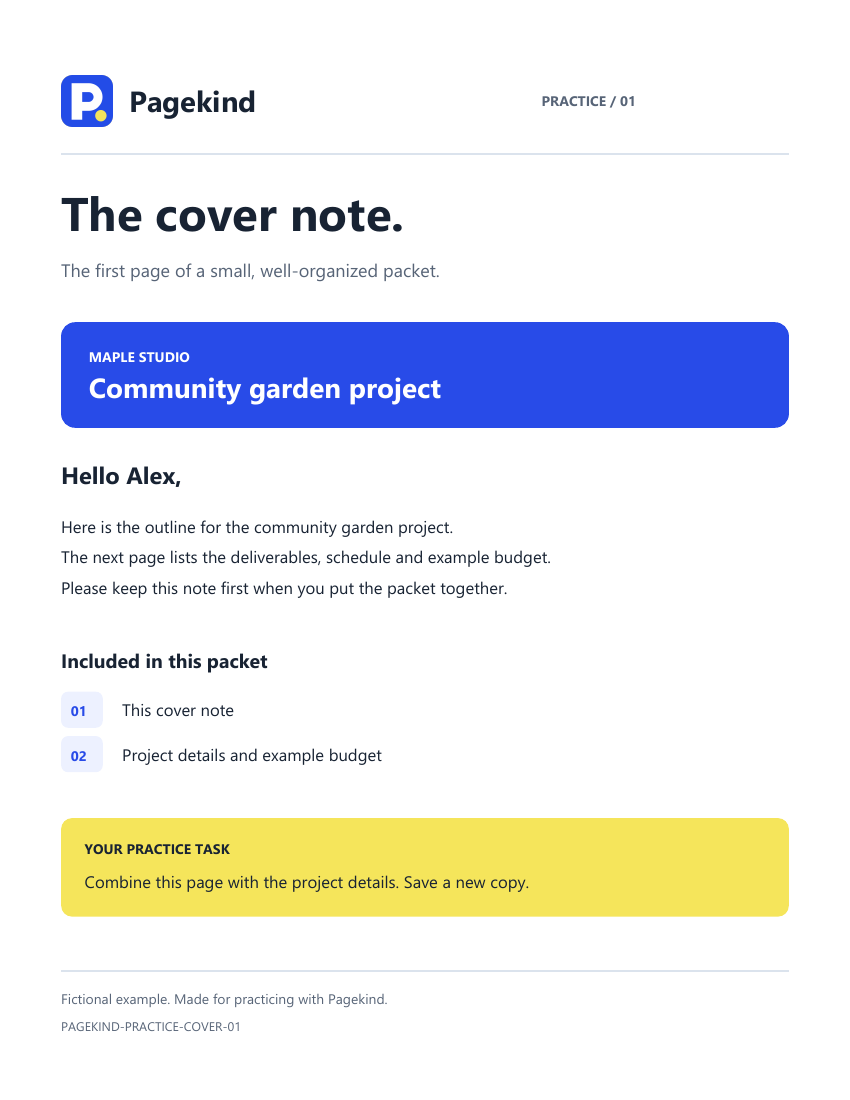
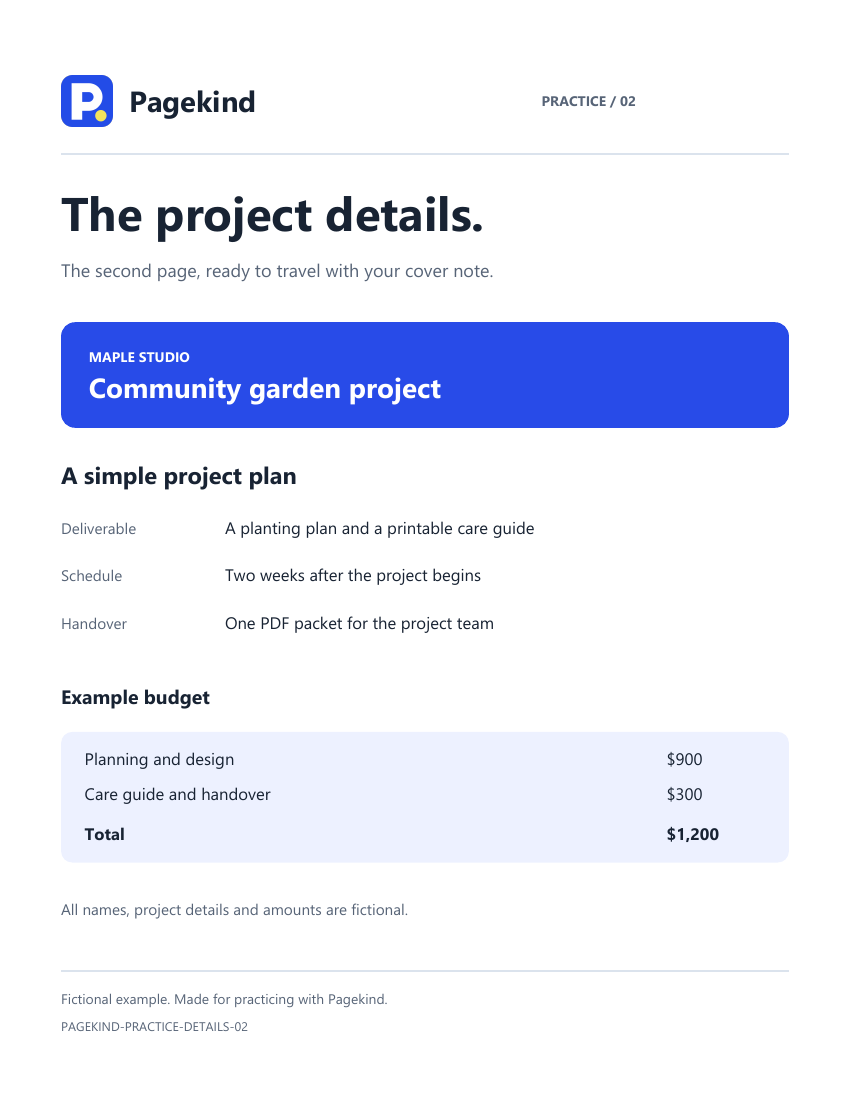
Get the files ready.
Put the PDFs you want to combine in a local folder. Make sure each opens correctly. If a file is password-protected, you need the correct password; Pagekind asks you to create an explicit unlocked copy before combining it.
Build a packet in five steps.
- Add your PDFs. Open Pages → Combine PDFs, then choose Add PDFs or drop PDFs into the Combine workspace. Add at least two files. A dropped selection is added to the end of your list.
- Check each file before combining. Select a filename to see its pages. The heading shows the file and folder and says whether you are seeing saved contents or this tab's applied PDF edits. Use Previous page, Next page or Ctrl+G and a page number. Zoom, Fit and Focus affect this preview. Refresh preview retries a file that changed or could not load.
- Arrange the order. Move the selected file up or down, or use Alt+Up and Alt+Down. Remove from list and Delete remove only its list entry. The PDF stays on your PC.
- Choose Combine PDFs. With a document open, the combined pages update its working copy. Undo restores the earlier document. The current tab's applied edits are included when it is an input; files outside this tab use saved contents. An unfinished text draft must finish applying before the operation can continue.
- Check and save the result. Pages shows the completed packet so you can review its page count and order. Choose Save a copy using a new name such as “complete-packet.pdf.” With no PDF open beforehand, Pagekind asks where to save first and opens that saved result. Canceling keeps the input list. Your original input files remain unchanged.
Protected PDFs need explicit unlocked copies before combining. If a page number is invalid, correct it within the displayed range; the current preview and entered value stay available. A failed combination keeps its input list ready for correction.
Need to move or remove an individual page?
Choose Pages in the same workspace. Drag a thumbnail or use Move up and Move down; the new order applies immediately and can be undone. You can also extract a page range, remove pages from a new copy, rotate a selected page, or split the file into a ZIP of separate page PDFs.
Page ranges accept examples such as “1-3, 5.” Always inspect the final page order before sending a packet. A PDF with no pages cannot be saved.
Reordering the complete document retains its displayed page labels, metadata, form objects and tag structure. Existing logical reading order stays as authored. Removing or duplicating pages is different: tagged documents show a notice when the selected copy loses accessibility tags.
Insert the missing pages.
In Pages, choose Insert pages. Choose an unlocked source PDF and enter the pages you need, such as “1-3, 5.” Place them before or after the current page, at the start, or at the end. Replace this page removes the current page and its annotations, then puts the selected pages in its place. Review any bookmarks or links that pointed to the removed page. You can undo the operation.
Trim the view.
In Pages, choose Crop page, then drag around the area to keep. The shaded preview shows what will be hidden. Apply crop updates the page in your working document; Undo restores its previous size. Reset to full page restores the page’s media area.
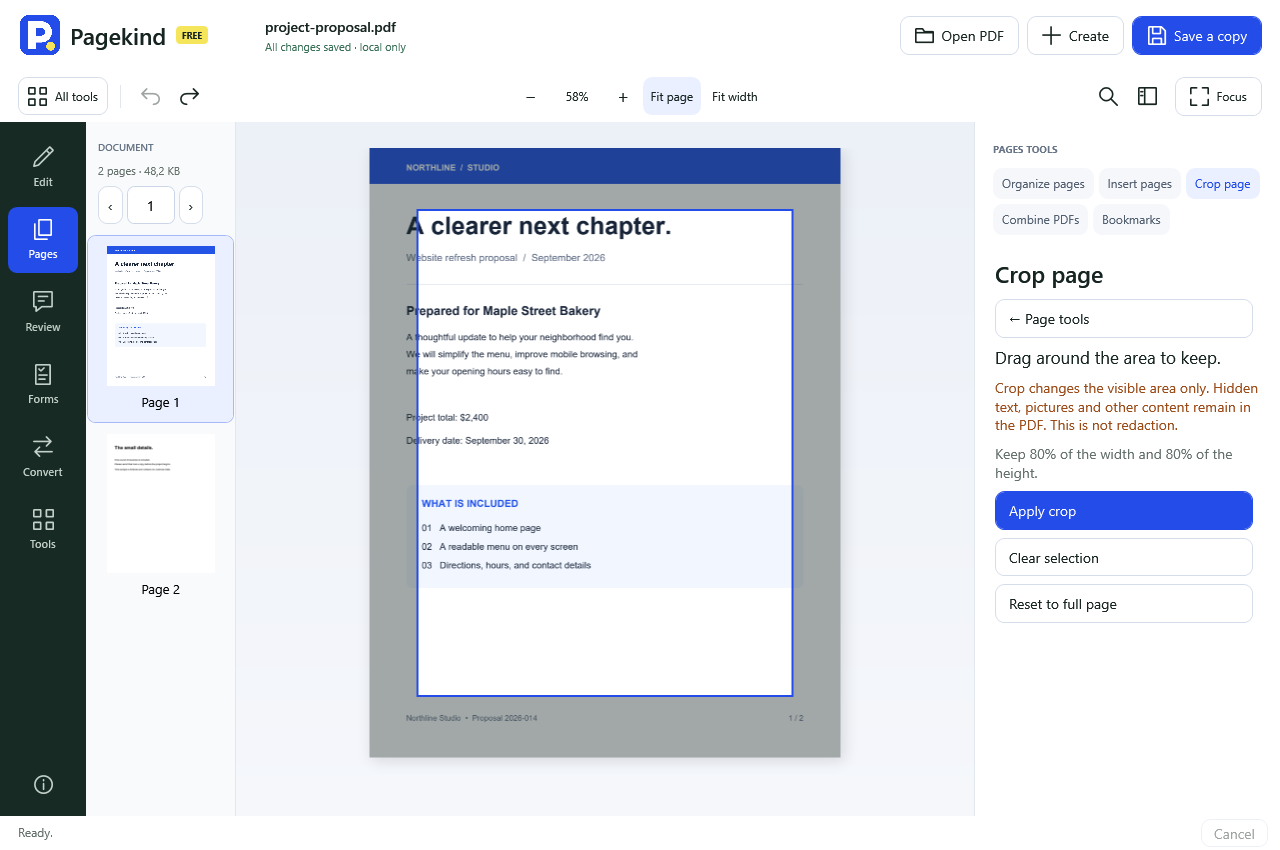
Cropping changes what is visible. Hidden text, images and other content remain in the PDF. Do not use crop to remove private information.
Will combining make the PDF smaller?
Not necessarily. Combining files and compressing a file are different jobs. Choose Convert, then Make smaller in your working document if you need to reduce its size. Keeping original picture quality avoids the optional lossy image setting. The result shows both sizes and says when a copy is not smaller.
What stays private?
The desktop app processes the PDFs locally and saves the new file on your PC. It has no document-upload service. Separate backup or sync software can still manage the folder you choose, so use a local folder when you do not want that behavior.
Pagekind 0.65.0 is an unsigned Windows x64 preview. Automated PDF checks and scoped isolated Windows installation checks have been completed. The combined Pagekind/resnet V1 is still in development. This preview has manual updates and no active bandwidth-sharing feature. Windows protection may warn or block it.
Need separate results for several files?
Open Convert → Batch tools. Add your PDFs, choose compression, text export or page-image ZIP export, and choose a local output folder. Preview the exact output names before Run. Each file gets its own result, so a password-protected or damaged input does not hold up the rest.
Cancel keeps completed results. Run / retry unfinished skips files that already completed. Verify results checks the actual output files; Recover an interrupted queue can restore a queue after its window has closed. New queue clears its record and temporary copies while keeping finished outputs. Your selected files on disk are the inputs; unsaved edits in an open workspace are separate. Text export does not recognize scans, and lower compression quality loses picture detail.
Already working in several tabs?
Insert pages from open PDFs to include applied source edits and review specific pages before adding them to the current document.