
Put the feedback on the page.
Open a PDF and choose Review, then Annotate. Select Highlight, Underline, Strikeout, Comment or Rectangle, then drag a box around the area. Choose a color before drawing. For a comment, enter the note you want to leave.
Pagekind applies the mark to your working document. Undo brings back the previous version. A strikeout marks a passage for review; it leaves the underlying text in the PDF.
Find the note you need.
Choose Review, then Comments. Each conversation entry shows a page, mark type, note preview and author when the PDF includes one. Search note text or author, narrow the list to This page, or choose an Annotation type. These filters work together. Clear filters brings the full list back.
Select a row to go to its page and see the full note. Previous note and Next note follow the filtered list in document order. A note without visible page bounds can still be read in the panel. Filtering changes the list; it does not remove marks from your PDF. Author names are PDF metadata, not verified identities.
Read the conversation.
Comments starts with one entry per conversation. A parent note shows its reply count. Select a note to see the conversation, then choose a reply to read its full text below. Show every note separately brings back the individual list. Each reply keeps its own author and readable PDF date; imported review statuses appear with the reviewer who recorded them.
Search and annotation-type filters reveal matching replies with parent context. The panel labels that extra context separately. Previous note, Next note and Filtered comments reports still follow the notes that match. Switching the list view keeps the selected note and unfinished text.
Grouped marks share their primary annotation's note and author. Missing parents and damaged relationships remain readable with an explanation. Reading a conversation leaves the PDF unchanged. Editing grouped relationships is not included yet.
On a crowded page, some selection outlines are hidden to keep the workspace responsive. All notes remain reachable in Comments, and a selected late note still gets its outline. Names and dates come from the PDF; they are unverified metadata.
Take the conversation with you.
Expand Exchange comments to inspect a local XFDF file or export supported sticky-note conversations. Export selected conversation keeps the root, nested replies and decision records together. Export all comments as XFDF includes every supported comment, including comments outside the list filter. Unsupported records stop the whole export instead of being dropped.
Both operations leave the PDF unchanged. Inspection is read-only. The separate Review an XFDF import workflow checks receiving pages before applying supported comments. See Inspect and export comment data for the full workflow, limits and troubleshooting.
Correct a reply. Keep the conversation.
- Select the posted reply, then Correct selected reply. Corrected reply text starts with the original words. The original author label stays visible and is retained in the PDF; labels are unverified metadata.
- Edit at your own pace. Pagekind keeps the correction locally, separately from a new-reply draft. Filters, pages, tools and document tabs keep the words attached to that exact reply. View reply being corrected returns to it.
- Choose Apply reply correction when ready. This changes the working PDF. Undo and Redo travel through applied changes; Save a copy keeps them in a file. Discard unapplied correction leaves the posted reply as it was.
If the PDF changes while a correction is kept, it cannot silently move to another reply. Undo can restore the version it belongs to. Closing offers keep, discard or cancel. Recovery restores the words without applying them. Later words entered while a correction is being applied stay in a separate correction.
Remove one leaf reply deliberately.
Select the reply and choose Remove selected reply. Confirm only after reviewing its text. Replies with dependent comments, decisions or other references cannot be removed. Apply or discard any kept correction first. Removal changes the current comment list; earlier content remains in PDF revisions and Undo history. It does not erase confidential content. Undo can restore the reply; Save a copy keeps the removal in a file.
Initial support covers ordinary plain-text replies kept in the comment list without their own printed marks or custom appearances. Locked, grouped, shared, malformed, encrypted, signed, rich-text, visible/printed and custom-appearance replies cannot be changed here. Unsupported replies remain readable. The original author, parent and decision histories are preserved. The deliberate XFDF import workflow supports a bounded plain-text subset; broader imported-reply compatibility remains future work.
Record a decision. Keep its history.
- Select a conversation and choose Review decisions and history. The panel shows the parent page and comment. The Reviewer label identifies whose recorded history you are reading; labels are unverified PDF metadata.
- Read the current decision first. Enter the exact label and select Refresh reviewer history. History for this label shows earlier records. All reviewer labels gives a bounded overview. Changing a label selects a different history.
- Choose a Decision, then Record decision. Accepted, Rejected, Completed, Cancelled and No decision are standard PDF review states. Choosing alone does not change the PDF. Recording adds a state to your working copy; Save a copy keeps it in a file.
No decision records an explicit cleared state without deleting earlier history. It differs from a label that has never recorded a decision. Document Undo and Redo travel through these PDF changes. Reviewer histories follow their actual references, so unreliable dates and reversed note order do not choose the current result. Ambiguous histories remain readable without a guessed current decision.
Filters, pages, tools and document tabs keep your label and pending choice with the original conversation. View decision conversation returns to it. Use selected conversation explicitly reattaches the choice after selecting another parent or changing the PDF. Unrecorded choices are held in this open window; closing discards them. They are not recoverable reply drafts.
Recording keeps an independently saved reply draft and its words. Since the PDF changes, that reply may need explicit parent reattachment before posting. Interrupted decision responses are checked against the actual workspace before another record is allowed. A recorded decision is part of PDF recovery; a pending choice is not.
Initial recording supports ordinary comments in bounded unencrypted, unsigned PDFs with unambiguous standard review histories. Locked or grouped parents, mixed or unknown history models, damaged relationships and files that fail preservation checks cannot be changed here. Up to 64 records are supported per label; the overview shows up to 128 labels, with exact-label lookup available separately. Pagekind preserves earlier PDF bytes, parent/history objects and page appearance when recording. Names and dates are not authenticated identities.
Write a reply and keep your place.
- Choose a conversation and select Write a reply. Your reply shows its parent comment and page. Enter a Display name and Reply text. The name is stored in the PDF and is not a verified identity.
- Continue at your own pace. Valid drafts are kept as local text while you change notes, filters, pages, tools or tabs. The feedback says when the draft is kept. Keep draft now saves it immediately. Keeping a draft does not post it.
- Choose Post reply when it is ready. The reply becomes part of your working PDF. Document Undo and Redo travel through that change. Use Save a copy to keep the posted reply in a PDF file.
Selecting another note keeps the original parent. View parent comment returns to it. To move your words deliberately, select a supported conversation and choose Reply to selected conversation. If another PDF edit makes the old parent uncertain, the draft stays available until you choose its current conversation explicitly.
Closing offers three choices: keep the draft in Recover, discard it, or cancel closing. A kept draft can return through Recover in the same window or after a restart, even if the PDF has no applied changes. It is never posted automatically. While typing, Ctrl+Z and Ctrl+Y use the reply field's local text history; document history leaves a kept draft available.
Draft words, display names and short parent context are local plain text. Reply posting initially supports bounded unencrypted, unsigned PDFs and supported ordinary parent comments. Locked notes, grouped or damaged relationships and files that fail preservation checks cannot be posted to. Your words remain available. The deliberate XFDF import workflow supports a bounded plain-text subset; broader imported-reply compatibility remains future work. See the privacy note for local draft storage.
Finish a thought before moving on.
Write in Note text, then choose Apply note. The note changes in your working PDF and gets one Undo step. A valid draft also applies before changing notes, pages, tools or document tabs. If a draft needs correction, Pagekind keeps it visible and explains why the change did not go through.
Search and filter changes keep your text box and unfinished words. If the selected note is outside the filters, the panel says so and keeps its editor available. Press Escape in the note, choose Discard note draft, or use Undo to discard an unapplied draft. Once the note is applied, Undo returns to the previous document version.
Give a mark a little more room.
- Choose Review, then Comments. Select an annotation on the page or in the list. The selected mark gets an outline and its properties appear beside the page.
- Move or resize a supported mark. Drag its outline to move it, or its corner handle to resize. The outline previews the position; releasing applies the change. Press Escape during a drag to cancel.
- Use precise coordinates when helpful. Expand Exact position and size. Enter Left, Top, Width and Height as percentages of the visible page, then apply the position and size.
- Keep the comment useful. Edit Note text and choose Apply note. Remove annotation deletes the selected mark; Undo restores it. Removal and document-history changes clear the selection so the next mark is not mistaken for the old one.
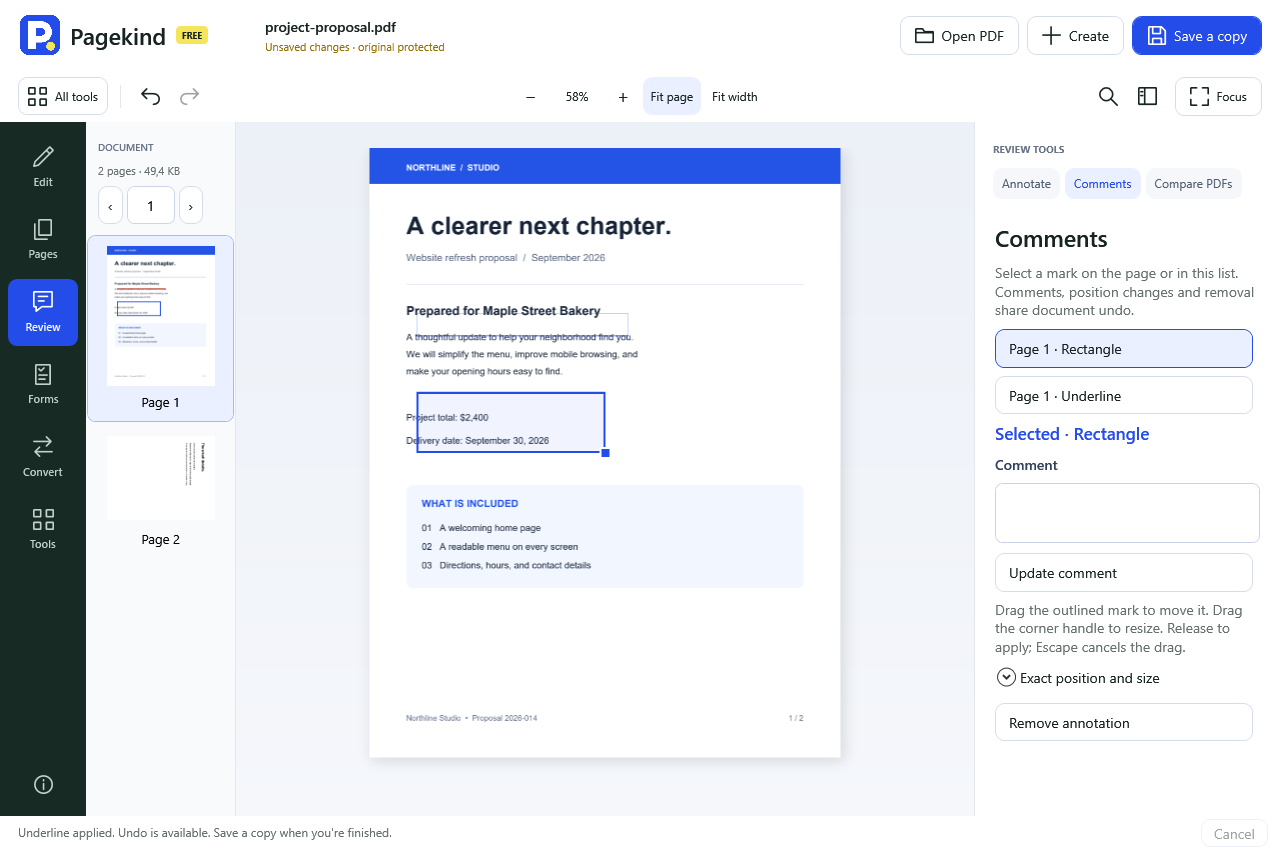
Movement and resizing cover supported rectangles and text markup, including Pagekind's underlines and strikeouts. Imported custom appearances may prevent movement. Shared annotation references, popup or reply relationships, rich-text notes, unsupported types and locks have explicit editing limits. Their readable notes remain available. Freehand drawing and editing the visible text of a FreeText annotation are not included yet.
Keep a record of the review.
Expand Save comment report. Choose All comments or Filtered comments, then Text or JSON, and use a new filename. A filtered report contains exactly the matching notes, including zero notes if nothing matches. The report states its scope and includes page numbers, types, authors and plain-text notes. It does not change the PDF or add an Undo step.
The report is a local, unencrypted file. Rich formatting and popup/reply relationships are not reproduced. JSON is a Pagekind review record; it is not FDF or XFDF for importing comments into another reader. Reports respect PDF copying permissions and may require the owner password.
Very large or malformed annotation collections can produce a clearly labelled partial review. The preview allows up to 10,000 review rows, scans at most 50,000 references and bounds note text and list size. A partial review remains readable; editing and reports wait for a complete index. Individual note drafts support up to 64 KiB of UTF-8 text.
Build a useful table of contents.
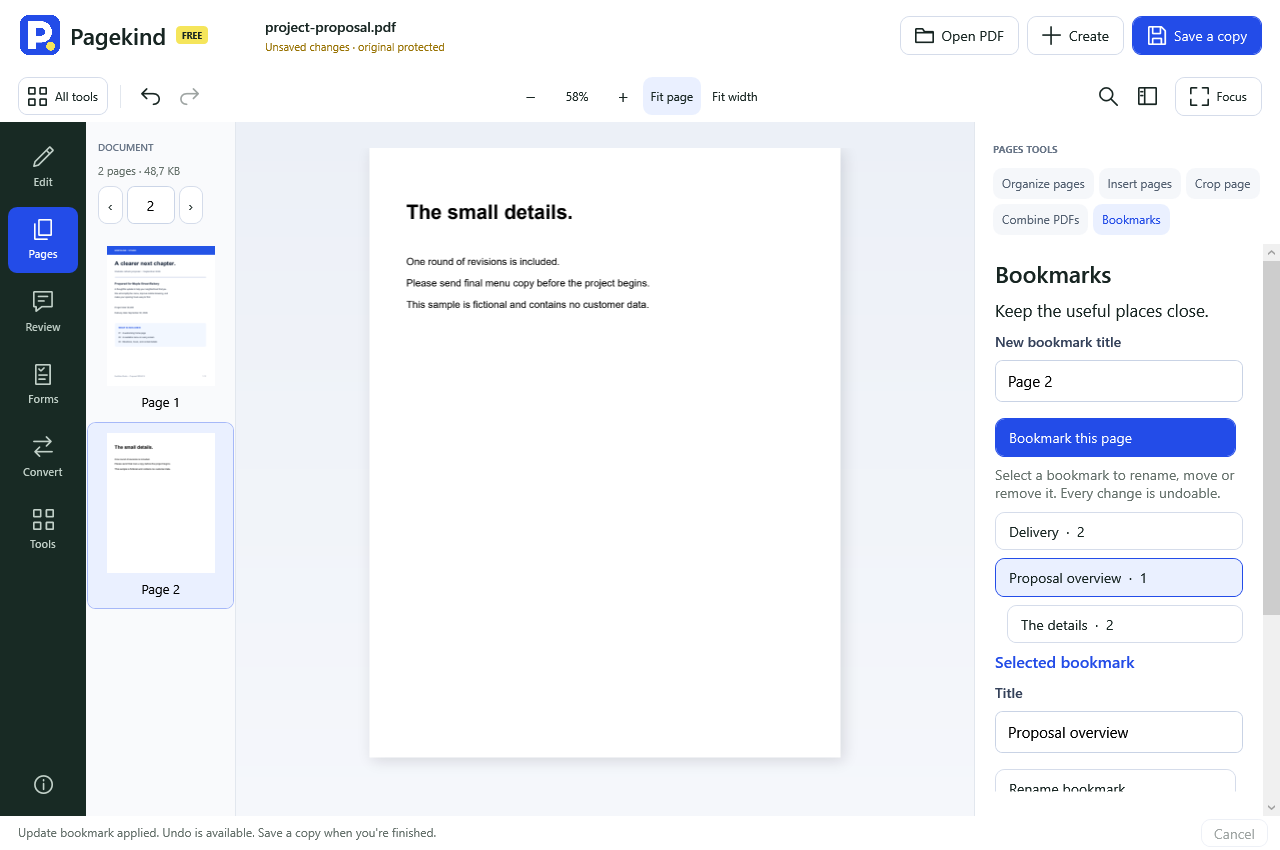
Choose Pages, then Bookmarks, enter a title, then choose Bookmark this page. Select a bookmark to rename it, set its destination to the current page, or add a nested bookmark under it. Move up and Move down reorder siblings; a section's nested bookmarks travel with it.
Removing a bookmark with children removes that bookmark section. The PDF pages stay in the document. You can undo bookmark changes just like text edits and markup. Existing external bookmark actions remain stored, but this preview only navigates to local page targets.
Save a copy for the next person.
Review your changes, then choose Save a copy and use a new filename. Your original stays unchanged. The app handles document processing locally; it does not upload the PDF or send it to the next reviewer for you.
Pagekind 0.65.0 is an unsigned engineering preview. Markup and cropping do not securely remove sensitive content. Automated checks use real PDF outputs and unshown controls; human keyboard, screen-reader, high-DPI and clean Windows release checks remain separate.