
First, check what kind of PDF you have.
A PDF can contain actual text, a scan of a page, or a mixture of both. Pagekind can replace supported text objects. A scan is a picture: making it searchable with OCR does not make the printed letters editable.
If you still have the original Word or design file, changing that source and exporting a fresh PDF is often the most reliable way to make a large revision. The steps below are for a small correction in an existing PDF.
Make the page comfortable to read.
Choose Fit width (Ctrl+2) to enlarge a tall page, or Fit page (Ctrl+0) to see it all. Ctrl+Plus and Ctrl+Minus adjust the view. If a draft is refused, Undo discards that unapplied draft and keeps your last applied change.
Find the tool without the clutter.
The sidebar groups related tools. Choose Edit to work on text, Pages to organize a document, or Review for annotations and comparison. Press Ctrl+K and search for change existing text to find Edit text, or add new text to place a new visible text box. For a review note, search for add a comment; for an existing conversation, search for reply to a comment. Focus mode hides the surrounding panels; choose a tool to bring them back.
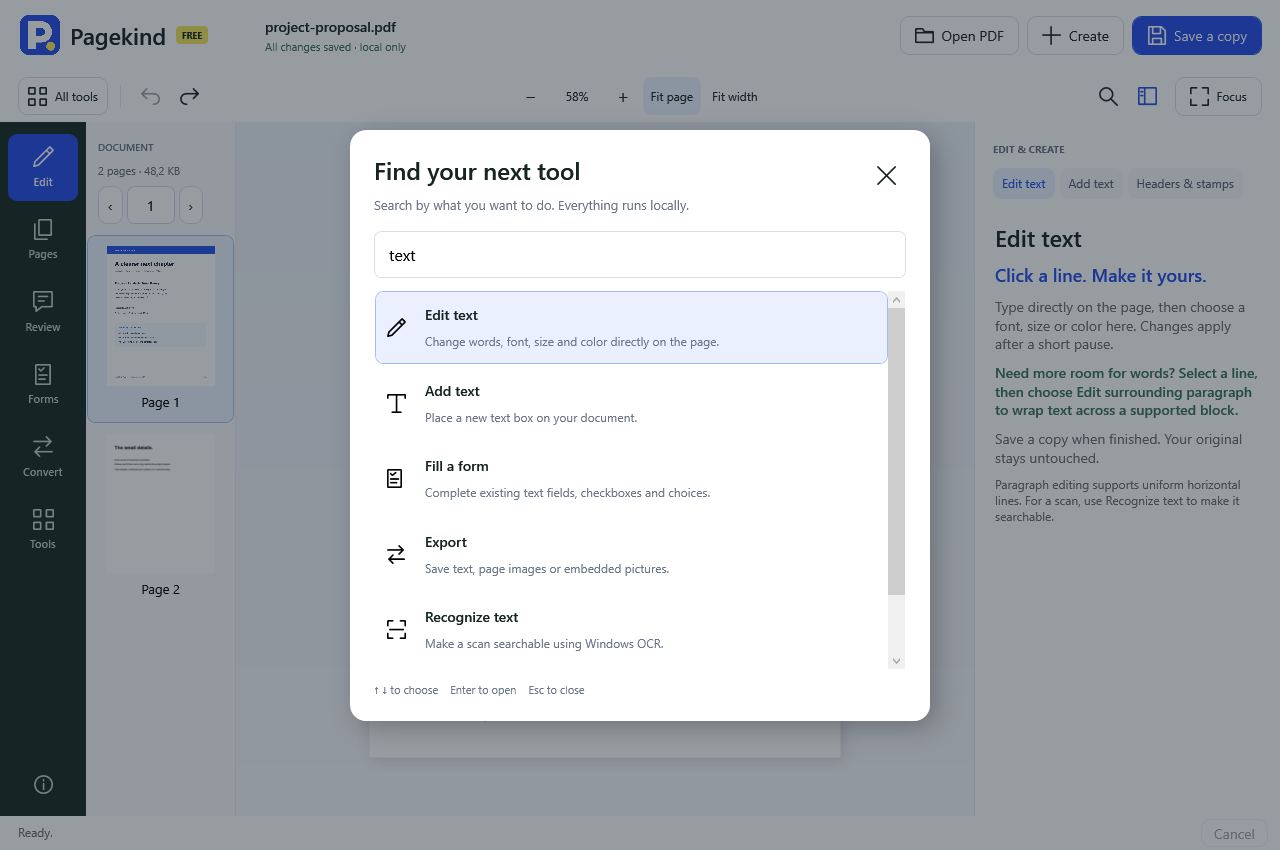
Make the change in Pagekind.
- Open your PDF. Drag it into the desktop app, or choose Open PDF. Use an ordinary local folder if you do not want separate cloud-sync software to sync your files.
- Choose Edit text, then click where you want to type. An editing box opens on the page with the caret near your click. Double-click a word to select it, then type its replacement. Use Ctrl+A inside the editor to select the whole line. The side panel shows the text and font. If nothing can be selected, it may be scanned or part of an unsupported graphic.
- Type a replacement that fits. Correct the typo, number, or short phrase. For a longer change across uniform lines, choose Edit surrounding paragraph and review the selected frame before typing.
- Keep editing, then choose Save a copy. Supported edits apply to a private working document as you type. Use Undo or Redo to explore; choose a new filename when you finish. Pagekind keeps the original unchanged.
- Inspect the saved copy. Check the changed line and nearby content before using the document.
Keep your correction precise.
A click places the caret; a double-click selects a word. Use the arrow keys to move through the editing box, or Ctrl+A to replace the whole line. Check the preview before saving. Selection follows the editing box’s text layout, so exact letter positioning can differ from the original PDF.
If a page refresh fails after an edit has applied, choose Fit page to load a fresh preview before selecting another line. The applied edit stays in the document’s Undo history.
Keep the spacing in more existing lines.
Some PDFs position each letter and leave gaps between words instead of storing ordinary spaces. Pagekind can now edit more of these horizontal lines with their original font. Unchanged adjacent letters retain their spacing; new letter pairs use the font’s measured widths. Words, size and color can change together. The app checks the original appearance and the saved text before accepting an edit. Complex shaping and unsupported layouts still need the original authoring file.
Give a paragraph room to wrap.
Select a line, then choose Edit surrounding paragraph. Pagekind proposes a frame around 2–60 aligned lines with the same font, size and color. Review that frame, then edit the words directly on the page or in Paragraph draft. Words wrap with the original font. Enter adds a line break; Ctrl+Enter or Done editing reveals the exact PDF.
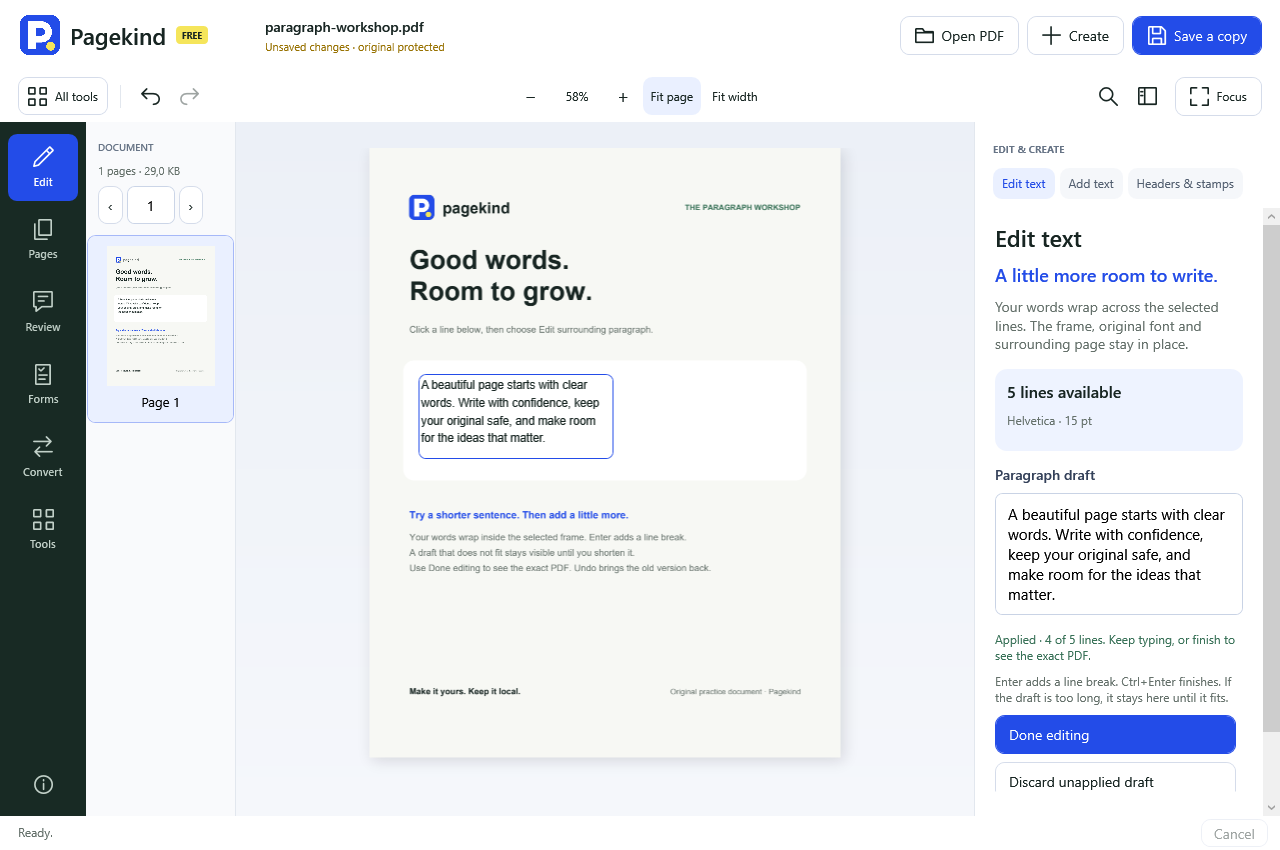
The line-capacity message tells you whether the draft fits. A longer word or too many lines stays editable without changing the PDF. Shortening a paragraph leaves room for subsequent edits; working-session history remembers the frame. Opening a saved PDF as a new document detects it again from its remaining lines. Paragraph editing keeps the original typography; use line editing to change a typeface, size or color.
Download the local paragraph practice page to try the workflow with an original sample.
Adjust the size and color in place.
Select supported text. Use Size (points) to adjust the lettering and Text color to choose Ink, Blue, Green, Red, Purple or White. The current-color sample shows your choice. For a precise match, expand Exact color value and enter a six-digit RGB value in Color (hex), such as #234CE8. The typing preview updates immediately; after a short pause, Pagekind checks and applies supported changes to the working document. You can change the words, size and color together, then Undo the change.
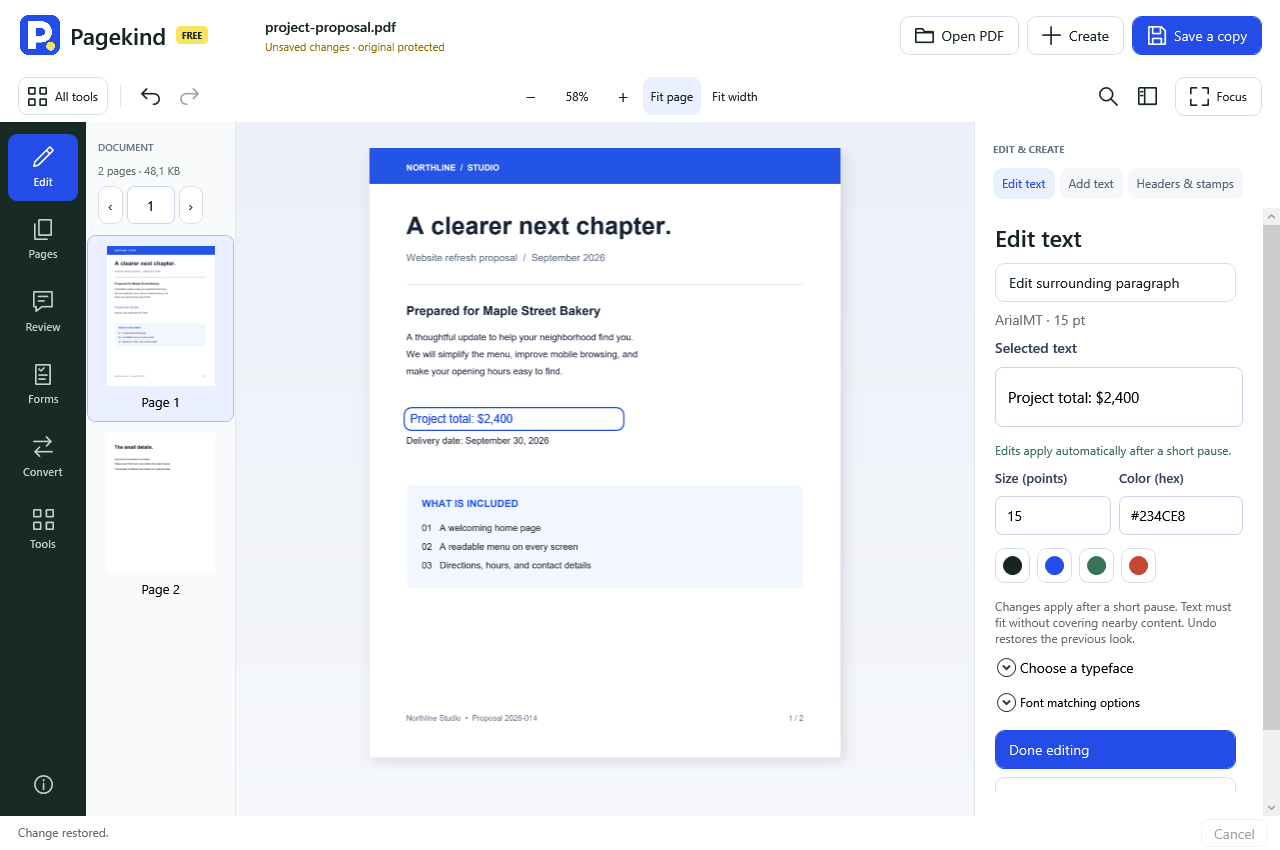
Larger text must fit on the page without newly covering a neighboring text run. A rejected size remains editable and does not alter the working PDF. The six swatches are shortcuts; Exact color value lets you enter another RGB color. Filled and outlined text can use the chosen color where supported. Translucent text keeps its original color because changing it through the current engine can alter its opacity. Its size can still be adjusted.
Choose a different typeface deliberately.
Expand Choose a typeface to load the installed fonts, then select a face, including its bold or italic variant. The draft previews your choice and the applied PDF is checked before it enters undo history. Choosing a different face is an intentional font substitution; Pagekind names the change so you can review it.
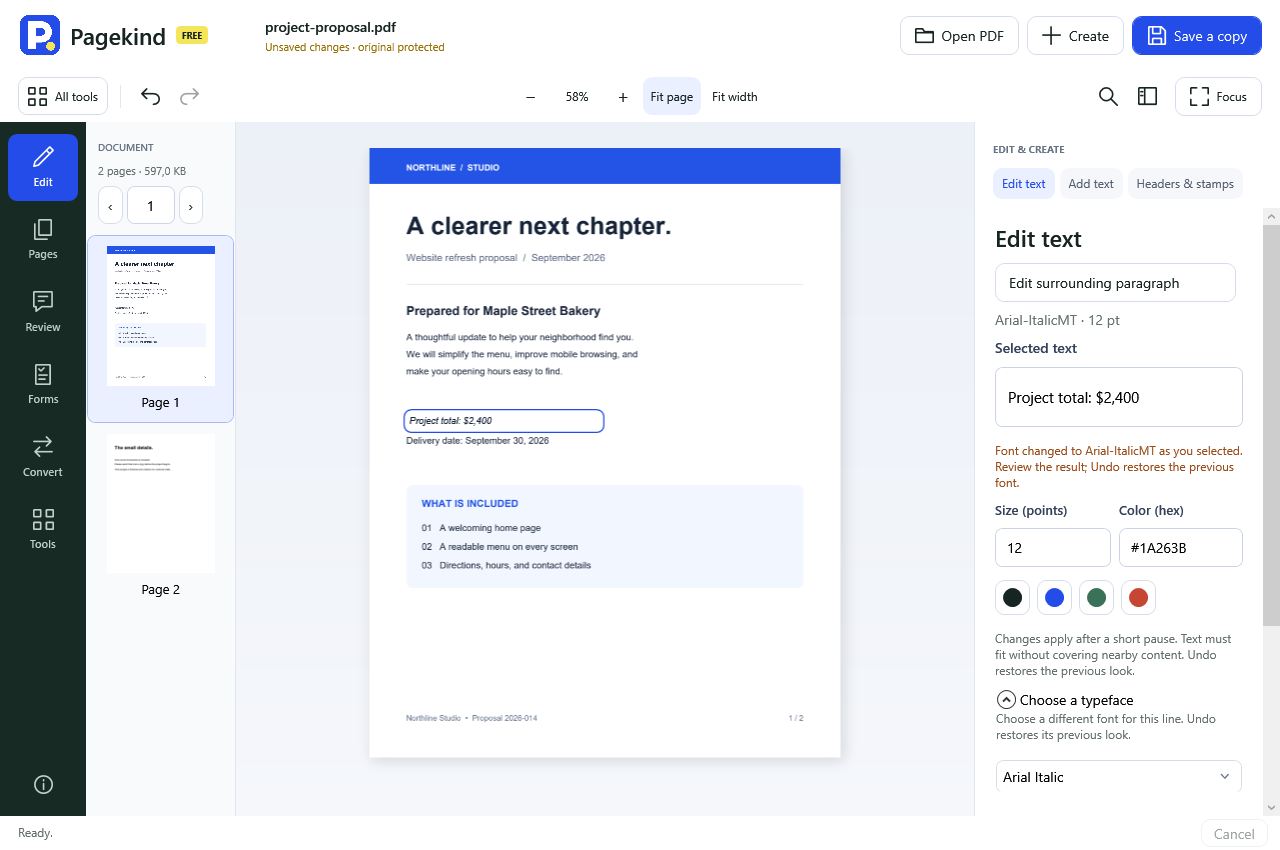
The list contains installed static TrueType fonts with supported embedding flags. Character coverage is checked when you apply a choice. Variable fonts, other outline formats, translucent text and outlined-text font replacements are outside this preview.
Why can a font cause a problem?
Many PDFs include only the letters used in the document. The font for “Hello” may not contain the extra letters needed for “World.” A successful text extraction does not prove those new letters will look right.
Pagekind checks the available glyphs and tries a matching installed font. It renders the original text to check the match. If it cannot establish the match, you get an explanation; a clearly labeled substitution requires your choice. Never treat a similar font as automatically identical.
What the preview does not support yet.
Mixed-style or rotated paragraph reflow, complex-script shaping and text inside nested graphics are not supported. Paragraph frames do not grow automatically, and nearby graphics or annotations can prevent grouping. Tests include generated examples and a separate set of independent constructed PDFs; neither is a guarantee for every PDF. Text with spacing that cannot be reconstructed exactly is refused before a change is published. If an edit is refused, preserve the source and try a shorter correction or the original authoring document.
Keep spaces as you typed them.
When a supported edit uses a replacement typeface, ordinary spaces and nonbreaking spaces keep their original meaning in the saved PDF. Reading, copying and text export use those saved characters. Your font files stay unchanged. Repeated or leading spaces that cannot pass exact readback, unsupported characters and complex shaping still need the original authoring file.
If an edit is interrupted.
Pagekind checks whether the change finished before continuing, so it can recover the result without applying it twice. If you see “Result not verified,” close and reopen Pagekind, then choose Recover. The working PDF and its Undo history are preserved; text that was still an unapplied draft may need to be entered again.
Pagekind 0.65.0 is an unsigned engineering preview. Clean-machine release validation is still in progress. Read the release notes before relying on it.
Keep your usual tools close.
Choose Pin this tool below the tool title, or use the star in All tools. Favorites appear above your document and on the start screen. In All tools, turn on Favorites to search your shortcuts, change their order with the arrows or remove one with its star. The settings stay on this PC and contain tool names only. Switching with a favorite checks unfinished drafts in the same way as other navigation.
Come back to a paragraph.
Paragraphs you have edited stay listed under Paragraphs on this page. If you clear all the words, an Empty paragraph frame stays available in Edit text. Click it or choose its list entry to type again with the same font and available lines. This marker is part of the editor and does not appear in the saved PDF.
Choose paragraph alignment and spacing.
Use Paragraph alignment for Left, Center or Right. Choose Tighter lines / Looser lines, or enter an exact Line spacing (points) value within the displayed range. The frame and typing preview respond immediately; the applied PDF uses the original font. Reset alignment and spacing returns to the layout first selected.
Give a paragraph more room.
Select a supported line, then choose Edit surrounding paragraph. Alignment and line spacing stay beside Paragraph draft. Open Text box size and capacity when you need to change the frame. Use Text box width (points) or More room / Less room to move the right edge; use Available lines or Add a line / Fewer lines to move the bottom edge.
The original font and first baseline stay in place. Choose 2 to 60 available lines within clear page space. If the frame would cover nearby content or cannot hold the words, the draft stays editable with an explanation. Closing Text box size and capacity keeps those values and your draft; it does not apply a PDF change. Ctrl+Z first discards an unapplied draft, then Undo and Redo move through applied changes.
Keep more than one PDF close.
Use Open, Ctrl+O or Ctrl+T to open another document in its own tab. Each PDF keeps its edits, Undo history, saved state and page/zoom settings. Ctrl+Tab moves between documents; Ctrl+W closes the selected one. Opening an already open original selects its tab.
Valid text and form drafts apply before you switch. A draft that needs correction stays editable in its current tab. Closing Pagekind reviews unsaved documents before closing them. Recover can restore several interrupted PDFs into separate tabs. If a file cannot be loaded, use Retry loading this PDF; its working copy is kept.
A protected PDF?
Supported text and paragraphs remain editable when your PDF permissions allow it. Changes keep the original passwords and permissions. If reading access restricts editing, choose Enter owner password in the text tool. Signed structures and unsupported security settings stay read-only, with an explanation before a draft starts. Understand reading and owner access.
Text marked read-only?
Signature, certification or timestamp structures block text rewrites. Select the text to read the explanation; use an unsigned original for changes. This structural check does not authenticate the signer or validate a certificate.
Correcting several lines?
Use the paragraph guide for alignment, line spacing, frame adjustments, live drafts and clear limits.
Keep your draft while choosing a font.
If a new letter needs a replacement font, your unapplied words stay in the editor. Open Choose a typeface to read the available choices without applying or discarding that draft. Select a suitable font; the app checks the change before it applies and explains the changed appearance. Undo restores the earlier text and font. If reading the choices fails, try Show installed typefaces again; your draft remains available.
Choose the next step when text is unavailable.
A blank page, scan or drawing may have no existing text objects to select. Choose Add new text to place visible words, or Recognize text in a scan to make an image-based page searchable. Recognition does not turn the printed letters in the image into directly editable text.
Text inside a reusable graphic, a hidden layer or a protected document may be read-only. The selected-text panel explains the available action and lets you continue with Read & select where permitted. It does not offer a typing field that silently ignores changes.
After zooming, click the line you want to edit again. The previous editing fields close when their page editor ends. Applied edits stay in the working copy; Undo and Redo remain available, and Save a copy keeps your original unchanged.
If a live draft needs attention, correct it or explicitly discard the unapplied words before leaving it. A clearer editing state does not mean every PDF layout or typeface can be edited in this preview.
Read light text while editing.
White or light-colored text stays visible against a contrasting editing background. The background is temporary: your saved PDF keeps the chosen text color and its existing artwork.
Make room for the page.
In a wider window, drag the inside edges of the page thumbnails and tool panel to choose their widths. Use Show or hide tool panel to hide the options without leaving the current tool. Your chosen widths are kept for this Pagekind window; they are not saved as a preference for the next time you open the app.
In a narrower window, the tool panel and page thumbnails become temporary panels over part of the PDF. Open the one you need from the toolbar and close it for a clear view of the page. Only one is open at a time. Making the window shorter also places navigation icons beside their labels, keeping the tool groups together. Ctrl+G reveals the page-number box so you can enter the page you need.
Resizing or opening and closing a panel keeps your current text draft and selected words. Those layout actions do not apply the draft or add an Undo step. Continue the correction, use Undo or Redo when needed, and Save a copy when ready.